
PNG Converter is the TeslaWrap.NET path for a picture you already have: a graphic, a logo, a poster, or a wrap layout from another editor. It does not ask you to paint panel by panel. It stretches the image to that vehicle's official canvas, then cuts the official template mask so only body-panel islands remain opaque.
What the conversion actually does
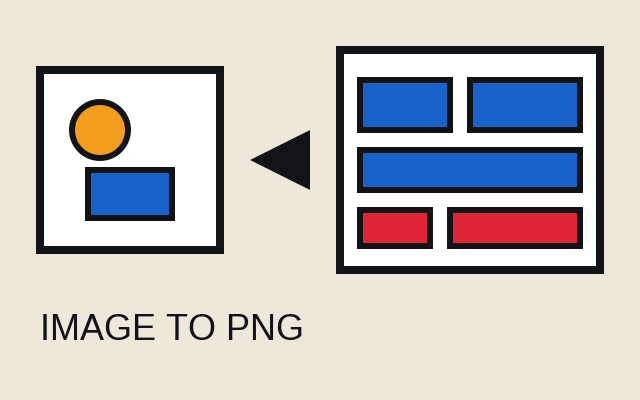
Tesla Paint Shop does not read a photo of a car. It reads a flat PNG laid out like the official wrap sheet: doors, hood, roof, bumpers, and the rest as separate islands on a transparent background. PNG Converter maps your upload onto that sheet. Pixels that land on a panel stay. Pixels that land in the gaps become transparent, which is what keeps artwork from floating in empty space on the visualization.
The page accepts PNG, JPEG, and WebP, among other still images. After the cut, the file is a PNG at the template size for the vehicle you picked: 1024 x 1024 for every official variant except Cybertruck, which is 1024 x 768 from the official template files in teslamotors/custom-wraps cybertruck/. If the PNG would be larger than 1 MB, colors are reduced only as far as needed to stay no larger than 1 MB. The exported filename stays short enough for Paint Shop.
Pick the variant the file is for
The converter always uses one official template. Model Y (2025+) Premium is a different sheet from the older Model Y, from Model Y L, and from Model Y (2025+) Performance. A file that uploads on the wrong hub still lands on the wrong islands: a door graphic can sit on the roof, and a bumper graphic can vanish. Open the vehicle hub for the car you drive, then run PNG Converter with that same variant selected.
| Action | Credits |
|---|---|
| Sign in, then generate the template PNG | 0 credits |
| Preview in 2D or 3D | 0 credits |
| First download that Pacific Time (Los Angeles) day after you sign in | 0 credits |
| Each later new download | 3 credits |
| Download the same stored result again | 0 credits |
How to convert the image
- 1
Select your Tesla
On /png-converter, choose the official variant that matches the car. The page shows the required canvas, such as 1024 x 1024 or 1024 x 768 for Cybertruck.
- 2
Upload the image
Choose the file from your phone or computer. A high-contrast graphic usually survives the panel cut better than a busy photograph, because fine detail breaks across door gaps.
- 3
Generate the PNG
Sign in to generate. Generation stretches the image to the vehicle canvas, then cuts it to the official template. That step does not spend credits. The PNG is stored on your TeslaWrap.NET account so you can preview and download it.
- 4
Preview in 2D or 3D
2D shows the flat template sheet with transparent holes. 3D maps the same PNG onto the car model so you can see whether stripes survive the doors and whether the hood still reads. Switch views before you download.
- 5
Download the file
The first PNG Converter download each Pacific Time (Los Angeles) day is free after you sign in. After that, each new download uses 3 credits. Downloading the same result again does not. Keep the PNG as a file; do not screenshot it or send it through a chat app that flattens transparency.
Why the 3D preview matters before you download
A full-bleed image looks finished in a square editor and unfinished on a car. Paint Shop lights the body, wraps the sheet around curved panels, and hides everything that sat in a transparent gap. The 3D preview on PNG Converter is the check for that. If a logo sits across a door shut line, you will see the split before the file ever reaches the Tesla app.
If you need the artwork on one panel only, stop and use the Fit Tool instead of forcing a full-canvas stretch. The Fit Tool is free and needs no account. You drag the image onto a dashed panel island, scale and rotate it, and export a PNG at the official size. Everything stays in the browser. PNG Converter is the other tool: it fills the whole sheet, then cuts the mask.
After you have a Paint Shop PNG
Save the download to Photos or Files. In the Tesla app, open the vehicle, then Creations, then Wrap, then Upload. You need Tesla app 4.59.0 or newer. If Wrap or Upload is missing in Creations, update the Tesla app and the car's software to the latest release. The app holds ten wraps; USB holds another ten in a top-level Wraps folder. The physical paint does not change. Only the rendering on the car screen and in the app does.
If you would rather start from a finished layout than from your own file, browse thousands of hand-picked designs already fitted to official templates. Preview does not need an account. A library wrap needs a signed-in account and a preference vote before it can be downloaded.